arp!0 Manual
Notable features
- Independent length for each sequencer. parameter polyrhythms!
- All real-time controls visible at once. change anything immediately.
- Expandable control grids for even more immediacy!
- Accent and offset sequences for cool rhythmic grooves.
- Step length and voices sequences for uneven, chordal arpeggios.
- Directions sequence for quick changes to input note order.
- Variants for quick change arps with mouse or midi program changes.
- User definable sort transforms rearrange input notes in unique ways.
- Syncs to the beat when the host is playing or recording.
- Plays in time as settings change, and through variant & preset changes!
- Complete midi control.
- All arp parameters saved in Reaper presets.
- Real-time display of active notes, played notes, and current steps.
- Pronounced “arp!-oh” (the bang is silent :^)
Main UI pane
Top-left buttons

| Button | Function | Notes |
|---|---|---|
 |
Play | runs arp |
 |
Pause | pauses arp. Keeps current notes ready to play. |
 |
Clear | clears current notes. |
 |
Hold | notes toggle on/off when enabled. |
Note that while playing, the last played step is highlighted in each sequence. But while paused, the next step to be played is highlighted. So when changing from pause to play, there is a brief moment when the play positions change back to the previous step before the next step occurs.
tick

Sets the time interval between arp steps according to host tempo or
absolute time. Tick has two modes: synchronized or
absolute, which are selected on the setting pane or
toggled by right-clicking the “tick” label
on the main pane.
synchronized tick mode
In sync mode, the tick time is relative to the host tempo, and displayed as a fraction of a whole note. In this mode arp!0 syncs to exact beats when the host is playing or recording.
Click the sync fraction to show a dropdown menu of fractions and a scale slider, click any fraction to select it:
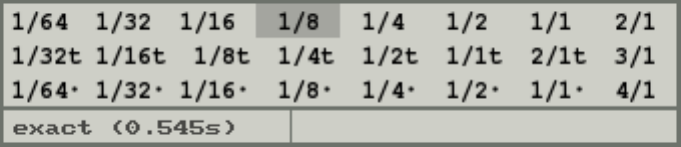
The dropdown’s scale slider allows sync’d ticks that are not exact fractions.
It shows a scaling factor from 0.75x to 2.0x, with a midpoint line at 1x. The text on the left end of the slider shows the current scale factor, or “exact” if scaling is not in effect. It also shows the tick time in parenthesis.
- Click in the slider to set a scale factor
- Right-click a fraction to disable scaling
The sync fraction on the tick button will have a “+” or
“-” suffix if scaled greater or less than the exact
fraction
absolute tick mode
In absolute mode, the tick time is displayed as a decimal number of
seconds, and the tick label has a
“~” suffix:

Click the time to show a slider and a grid of fractions:
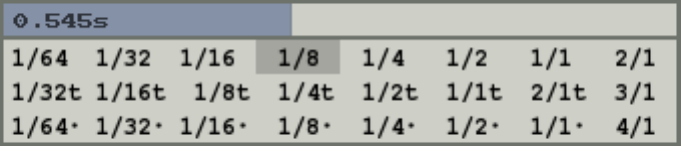
The text on the left end of the slider shows the tick time in seconds. The fractions select the range of the slider relative to the current host tempo, again from 0.75x to 2.0x of the fraction of a whole note.
- Click the slider to select a tick interval
- Click the fractions to change the range shown on the slider, but not change the current tick time
- Right-click a fraction to change the slider range and select the 1x value on the slider as a tick time
- Shift-click the tick button for a high-resolution slider with a range of +/- 10% of the current value
swing

Specifies extended time for certain steps, usually every other one.
The value is a percent of the step length by which the following step is
delayed. The swing steps value on the
settings pane sets the number of steps between the extended steps.
channel

Sets input & output midi channel used by arp!0. The
midi bus value on the settings pane sets
which Reaper bus this channel operates on.
arp!0 eats all notes input on this bus and channel.
sort

Sets the initial ordering of input notes.
| Button | Function | Notes |
|---|---|---|
 |
time | Notes ordered by time received |
 |
note | Notes ordered by pitch |
order

Sets normal play order of notes based on the sort and any active sort transform.
| Button | Function | Notes |
|---|---|---|
 |
up | Low to high: 1,2,3,1,2,3… |
 |
down | High to low: 3,2,1,3,2,1… |
 |
up&down | Up, then down. high/low notes repeat: 1,2,3,3,2,1,1,2,3,3,2,1… |
 |
updown | Up-down: singular high/low notes: 1,2,3,2,1,2,3,2,1… |
 |
down&up | Down, then up: 3,2,1,1,2,3,3,2,1,1,2,3… |
 |
downup | Down-up: 3,2,1,2,3,2,1,2,3… |
 |
random | Random note and octave |
octaves

notes repeat in order for the set number of additional octaves. there are two modes for multiple octaves: replicant and heuristic, described in the settings section below. in heuristic mode, if octaves is > 0 the current octave is indicated by a period after the current octave number. control/command-click an octaves value to set the current octave.
Button grids

button grids are clickable rows of icons or values. clicking these shows a popup grid of choices, or a slider. clicking in the popup changes the value for a step. shift-clicking changes the value of the step clicked and all those to the right of it. alt/option-clicking resets the clicked step to a default value. right-clicking a step sets the sequence length of the row clicked. control/command-clicking sets the current play position. shift modifies both right and control/command clicks to change the length or play position of *all* sequences. alt/option-right-click to delete a step. control/command-right-click to insert a step. note that because arp!0 generates output ahead of the beat, changing the play position may be most useful when paused. the button grid label will have a “~” suffix if the play order for that row is random. right-click the label to toggle random play order.
button grids can be expanded to show control grids for all steps at once. this makes it easier to change the values of many steps in a particular sequence quickly. click the row label to reveal the grid. click cells or sliders in the grid to set the values of sequence steps. drag across the grid to change many values quickly. click the grid label, or anywhere left of the control grid, to hide it and show the button grid again.
dir
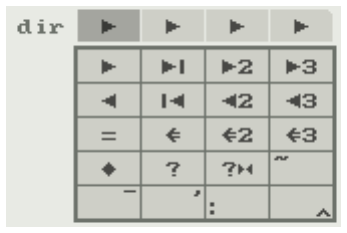
Directions which modify the play order. The most common dir types are:
| Button | Function | Notes |
|---|---|---|
 |
next step | Plays next note in sequence based on note sort, sort transform, and order. This is the “normal” next note. |
 |
last step | Plays the last note in the input note sequence. |
 |
previous step | Plays the previous note in the input note sequence. |
 |
first step | Plays the first note in the input note sequence. |
 |
same step | Repeats the immediately previous step. |
The other dir types are described in the “direction sequence step types” section below.
length

The length of an arp step as an integer multiple of the tick time.
gate
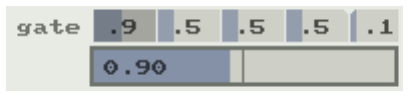
The duration of notes generated for a step as a fractional multiple of the tick time, from (almost) 0.0x to 2.0x.
voices

Number of notes generated for a step. Each voice uses another note from the currently active input notes.
trans
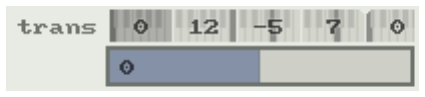
Transposition of the notes generated for a step, in semi-tones.
Slider grids
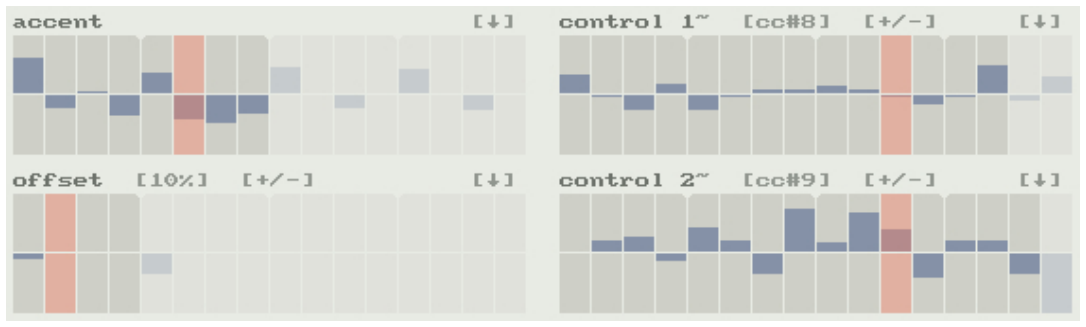
Slider grids are clickable sequences of sliders:
- Clicking and dragging in a slider changes its value.
- Dragging across sliders will change many values quickly.
- Shift-clicking also changes the value of all sliders to the right of the one clicked.
- Alt/Option-clicking resets the clicked slider to a default value.
- Right-clicking a slider sets the sequence length for that grid.
- Control/command-clicking sets the current play position for the grid.
- Shift modifies both right and control/command clicks to change the length or play position of *all* sequences.
- Expand [<down arrow>] and Collapse [<up arrow>] clickers toggle height of slider grid rows.
The button grid label will have a “~” suffix if the play
order for that row is random.
- Right-click the label to toggle random play order.
accent

Modifies the velocity of the notes generated for a step:
- Values higher than the midpoint scale the velocity from the original to maximum.
- Values less than the midpoint scale it from the original down to 1.
offset
Offsets the start time of step notes by a percent of the tick time.
![offset [10%] [+/-]](img/ui-offset-label.png)
On the right-side of the label are indicators of the offset range and polarity. The offset range is shown as a percent of the tick time in square brackets. Offset polarity is shown as unipolar [+++] or bipolar [+/-].
- Clicking the percent value cycles the offset range between +/- 10%, 25%, 50% and 100% of the tick time
- Click the polarity indicator to toggle polarity
Unipolar offsets delay note start times.
- Bipolar offset values higher than the midpoint delay the start time
- Values lower than the midpoint advance the start time ahead of the beat
- This is possible because arp!0 operates ahead of the beat by the current bipolar offset range
NOTE: to maximize arp!0’s responsiveness, use the minimum necessary range when using bipolar offsets:
- Note input and parameter changes within the bipolar offset range before a step are effective one step later.
- Input notes must be ahead of the beat by at least the offset range to avoid this delay with bipolar offsets.
NOTE: for immediate arp output when host playback starts use unipolar offsets.
control
Specifies the midi controller values which are generated for each step:
![control 1 [cc#8] [+/-]](img/ui-control1-label.png)
The midi cc number is shown in brackets to the right of the label.
- Clicking the cc number shows a popup grid to set which midi cc is sent.
- Pitch bend or note improbability are also options.
OFFdisables controller output.
To the right of the cc number is an indicator of whether the slider
grid displays unipolar [+++] or bipolar [+/-]
data.
- Clicking this indicator toggles the grid polarity.
Note improbability is an alternative to pitch bend for two of the four control sequences.
- Positive improbabilities are the probability that note output for a step is suppressed, leaving a gap in arp output.
- Negative bipolar values are the probability that a step is skipped
completely.
- In this case the next step occurs immediately, if it also passes the probability test. This is so it is possible to skip multiple steps at high negative improbabilities.
vars
Allows selection of one of several arp variants.
![vars 1-8 [+] [-] [dropdown]](img/ui-vars.png)
To the right of the label are a row of buttons, one for each variant that has been created:
- Click a button to load that variant, which includes all non-midi, non-global arp settings.
- Right-click to load the variant and reset sequence play positions to saved starting values.
- Shift-click to prevent changes from the previous variant from being saved before loading another.
To the right of the variant buttons are add [+] and delete
[-] text controls:
- Click
[+]to create a new copy of the current variant, up to a maximum of 12. - Shift-click
[+]to make a copy of the current variant without saving changes to the original. - Click
[-]to delete the current variant. Click again on the red[-]to confirm the deletion.
To the right of the add & delete controls is a <down
triangle> ([▼]) text control which displays a dropdown
menu:
- The first two menu items copy and paste current variant values between variants and presets.
- The “apply changes to ALL variants” item applies any changes made to the current variant to all other variants as well. NOTE: Edits to the current variant are normally saved when selecting the next variant.
- Reselect a current variant to save any edits to it.
- Shift-click on the current variant to abandon all edits since it was last saved.
- Right-click on the current variant to save it and reset play positions.
Variants can be changed using midi controller messages; enable this on the settings pane.
notes

A view of the first 16 currently active notes, in the sort order.
- The note velocity is shown as a shaded bar behind the note name.
- Notes in these first 16 which have been output in the current step are highlighted.
- The
noteslabel will have a <right arrow> (“→”) prefix if loading a preset also loads any notes that were active when it was saved.
Right-click the notes label to toggle
loading saved preset notes.
Direction sequence step types
| Button | Function | Notes |
|---|---|---|
|
Next step | Plays next note in sequence based on note sort, sort transform, and order. this is the “normal” next note. |
|
Last step | Plays the last note in the input note sequence. |
 |
2nd next step | Plays the 2nd note ahead in the input note sequence. |
 |
3rd next step | Plays the 3rd note ahead in the input note sequence. |
|
Previous step | Plays the previous note in the input note sequence. |
|
First step | Plays the first note in the input note sequence. |
 |
2nd previous step | Plays the 2nd previous note in the input note sequence. |
 |
3rd previous step | Plays the 3rd previous note in the input note sequence. |
|
Same step | Repeats the immediately previous step. |
 |
Back one step in time | Replays the note which was played just before the previous
note. This is based on the history of notes arp!0 has played, and can be different from previous notes in the input note sequence when the normal sequence order has been changed by special steps like first/last/random/etc. |
 |
Back 2 steps in time | Replays the 2nd note prior to the last. |
 |
Back 3 steps in time | Replays the 3rd note prior to the last. |
 |
Reverse | Alternates between up and down unidirectional orders. Changes the current play order for bidirectional orders (up-down/updown/down-up/downup). By default, repeats the previous note in sequence, which gives the effect of the “sticky” up-down and down-up orders. Add the contract-meta to avoid this duplicate note and give the effect of the “bouncy” updown/downup orders. |
 |
Random step | Plays a random step in the input note sequence. |
 |
Random next or previous step | Randomly does either next step or previous step. |
Meta directions
Meta directions are optional behaviors which can be added to the normal dir types. When a meta dir is selected in the dir dropdown menu, it will be added or removed from whatever basic step type is already selected for that dir step.
The meta dir types are:
| Button | Function | Notes |
|---|---|---|
 |
twiddle meta | Reserved |
 |
subtract meta | Suppresses note output for a step. |
 |
contract meta | Combines a dir step with the following dir step. contracted dir steps change the input note sequence just as if they occurred normally. but the contracted dir outputs no notes, takes no time, and is immediately followed by the next dir sequence step. Contracted dir steps provide a way to specify a step relative to another step. (see Contract meta examples) |
 |
section meta | Marks a step for special dir sequence operations which are triggered by dir operation steps. |
 |
directory operation meta | Sets a step to an alternate dir type, most of which alter the order
of the dir sequence itself. When the dirop meta is selected, the dir
types dropdown changes to show the alternate types available:
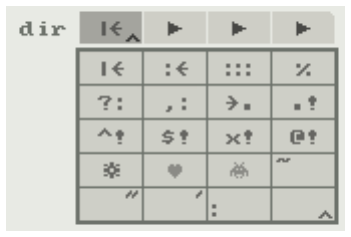 (see directory operation (“dirop”) meta examples) |
Contract meta examples
| Sequence | Function |
|---|---|

|
Specifies the 2nd note in the input sequence:
is a contracted “first
step” dir step. It selects the first note in the input sequence, but
otherwise does nothing because it is contracted. The following dir step then generates the next
note after that, which is the 2nd note. |

|
Specifies the 5th note ahead in the input
sequence: selects the 2nd
note ahead, but does not play it because it is contracted. plays the 3rd note after that,
which is 5 notes ahead. |

|
When repeated, generates random notes interleaved
with sequential notes every other
step: selects a
random note from the input
sequence. selects the
whatever note was output before that random note, but generates no
output because it is
contracted. then generates the
next note after that in the input sequence. |
Directory operation (“dirop”) meta examples
| Button | Function | Notes |
|---|---|---|
 |
first dir | Seeks back to the first dir step. |
 |
previous section | Rewind the dir sequence to the closest previous step with a section meta. This is useful to restart the dir sequence from some point after the first step. it enables an initial, one time set of prefix dir steps followed by a different set of repeating dir steps. |
 |
multisection | Counts as 3 sections for the random and sequential section dirops.
Useful for weighting the probability of a random section, and for
repeating a sequential section. When combined with the prime meta, counts as 7 sections, or 31 when also combined with the section meta. When combined with the prime2 meta, counts as 15 sections, or 95 when also combined with the section meta. these values enable musically useful repeat counts for sequential sections. |
 |
resortx | Triggers an update for any active sort transform. |
 |
random section | Seek forward in the dir sequence randomly to one of the following steps marked with the section meta. Will not seek past a final section step. Will not seek to sections inside a nested random/sequential section-final section pair. |
 |
sequential section | Seeks to the following section steps sequentially, one each time the sequential section dirop occurs. The prime and prime2 metas allow two additional independent sets of sequential sections. |
 |
end section | Seeks forward in the dir sequence to the step following the final section step, or back to the beginning of the dir sequence if there is no following final section step. |
 |
final section | Terminates a set of random or sequential sections. Random/sequential section dirops will not seek forward past this step, and end section seeks to the step following this one. |
 |
on first note | Seeks to the following dir step when the input note sequence reaches
the first note. Note that this dir step takes effect for the next note after the first. If there are multiple on first note dirops they will take effect sequentially each time the input note sequence reaches the first note. This is also true for the following “on…” dirops. on first note has a variant when combined with the prime/prime2 metas: on first note with prime seeks back to the next preceding instance of on first note with prime2. If there is no preceding instance with prime2, it wraps around to seek a following instance. These variants are also effective for the following “on…” dirops. |
 |
on last note | Seeks to the following dir step when the input note sequence reaches the last note. |
 |
on passing note | Seeks to the following dir step when the input note sequence passes the end of the sequence. for up and down orders, this is when the note sequence repeats. for updown/up+down/downup/down+up orders this is when the note sequence changes direction. whereas the on first and last note dirops will not trigger if the first or last note is skipped, on crossover note will always happen after the note sequence cycles or changes direction. but note that it triggers after the first note of the new cycle or order. |
 |
on host seek | Seeks to the following dir step when the host seeks forward or backward. |
 |
reset play positions (“boom”) |
Resets the play position of all control sequences to their last saved positions, including the dir sequence. aka “boom”. |
 |
prime meta | Selects variant behavior for some dirops. |
 |
prime2 meta | Selects secondary variant behavior for some dirops. |
Settings/help pane
Click the ![[arp!0]](img/ui-logo.png) logo to reveal a
settings & help pane. settings are keyword lists with a button
colored background following a label.
logo to reveal a
settings & help pane. settings are keyword lists with a button
colored background following a label.
- Click a keyword to select that setting. Selected keywords are highlighted.
Current settings are:
max steps

Select extended 24/32 step modes, or the standard 16.
control 3/4

Enable optional 3rd and 4th control sequences.
midi bus

Select which Reaper midi bus is used for arp!0 input & output.
midi control
Enable midi CC control.

Basic midi control enables midi CCs on arp!0’s main midi channel as follows:
| CC | Effect |
|---|---|
| 32 | select variant |
| 33 | if nonzero, variant changes will also reset all sequence play positions to saved values. this setting persists until reset by a zero value cc. |
| 34 | if nonzero, variant changes will not save any edits made since the variant was selected. this setting persists until reset by a zero value cc. |
| 35 | if nonzero, selects the next higher variant. wraps around if the current variant is last. |
| 36 | if nonzero, selects the next lower variant. wraps around if the current variant is first. |
| 37 | if nonzero, resets all sequence play positions to saved values. |
| 38 | if nonzero, enables arp playback. |
| 39 | if nonzero, pauses arp playback. |
| 40 | if nonzero, clears any current arp notes. |
| 41 | if nonzero, toggles the note hold control. |
| 48 | sets the play position for the dir sequence. |
| 49 | sets the play position for the length sequence. |
| 50 | sets the play position for the gate sequence. |
| 51 | sets the play position for the voices sequence. |
| 52 | sets the play position for the trans sequence. |
| 53 | sets the play position for the accent sequence. |
| 54 | sets the play position for the offset sequence. |
| 55 | sets the play position for the control 1 sequence. |
| 56 | sets the play position for the control 2 sequence. |
| 57 | sets the play position for the control 3 sequence. |
| 58 | sets the play position for the control 4 sequence. |
Extended midi control enables midi CCs on the 4 channels above arp!0’s main channel to change step values for the control sequences:
| Channel | CC 24-55 | CC 56-87 | CC 88-119 |
|---|---|---|---|
| main+1 | dir sequence | dir sequence metas | length sequence |
| main+2 | gate sequence | voices sequence | trans sequence |
| main+3 | accent sequence | offset sequence | control 1 sequence |
| main+4 | control 2 sequence | control 3 sequence | control 4 sequence |
When extended midi control is enabled:
- arp!0 will output midi CCs on the extended channels as edits are made to the control sequences.
- arp!0 will also send midi CCs for all control sequence step values when presets are loaded or variants are changed.
This output enables synchronization with midi controllers.
midi lock

Disable changes to arp!0’s midi channel, bus, and midi control settings when loading new presets.
- When midi lock is
yes, the “chan” label on the main pane will have a “~” suffix. - You can right-click the “
chan” label to toggle midi lock.
This is a global setting which is not saved with presets. The default value, including defaults for locked midi channel, bus, and control, can be changed by editing the global settings file described below in colors.
tick mode

Select whether the tick interval is synchronized with the host tempo or an absolute time.
- This setting can also be toggled by right-clicking the
“
tick” label on the main pane.
octaves mode

Select how to implement additional octaves:
replicantmode adds octave notes to a virtual note list after the actual input notes. These virtual notes will be shown in the active note list and behave just like additional input notes at higher octaves. This allows seamless transitions across octave boundaries for complex sort transforms, and avoids some interesting behaviors at octave boundaries when input notes are reordered by the dir sequence.heuristicmode uses rules to play notes at higher octaves based on when the first and last notes from the input note sequence are encountered. This means that sort transforms and thedirsequence operate on input notes without regard to octaves. This can produce different behaviors at octave boundaries compared to replicant mode. Some of these differences are interesting and cool, some not so much.
This setting can also be toggled by right-clicking the “octaves” label on the main pane.
swing steps

Select the number of steps across which swing is applied. arp!0 will swing every number steps on the beat.
trans range

Select the editable range for transposition sequence steps in semitones.
trans base

Select the lower limit for transposition sequence steps in semitones. Changing the transposition base will immediately change the octave of notes generated by arp!0.
random sequence (dis)order

Select sequences which will have random playback order. Random order
sequences are indicated by a “~” char after the sequence
label on the main pane.
- Right-clicking those labels also toggles random order.
sort transform
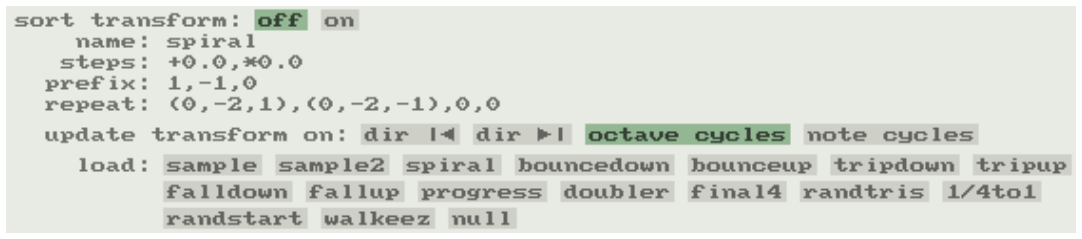
Sort transforms rearrange current input notes according to specifications loaded from text files.
- Select off or on to enable any currently loaded sort transform
- The name and specification of the current transform are shown next.
- The “update transform on:” section shows events which will reapply the active sort transform to current input notes if selected here. This is useful to update the reordered notes at intervals when a (semi-)random sort transform is active.
- In the “load:” section, the names of available sort
transforms are listed.
- Click a sort transform name to load and activate it.
The transforms are loaded from text files. These transform
specification text files are located in the bangzero_data/
folder inside the Data folder in Reaper’s Resource Folder. The files are
arpbangzero_sortx.txt for user transforms and
arpbangzero_defsortx.txt for the default transforms
included with arp!0. See the sample transforms in
arpbangzero_sortx.txt for details on the transform
specification.
On the main arp!0 pane, if a sort transform is active, the sort
labelwill have a “~” suffix:
- Right-click the
sortlabel to toggle the last selected sort transform on and off - Right-click either sort icon for a dropdown menu:
- The first menu item is the name of the currently loaded sort transform, if any, prefixed by “~”. Click this name to toggle the transform on and off.
- After that are items which copy and paste the current sort transform between variants and presets
- Last are a series of menu items which will load sort transforms directly from the main pane.
- Select the “
load:” menu item (or click the “load:” label on the settings pane) to reload the transforms from their source specification files.
Notes:
- The current sort transform is saved and restored with presets.
- Loading a sort transform only reads a transform specification into the current preset.
- Sort transform specification files are an independent, modifiable source for sort transforms in presets.
- Sort transforms in presets do not change when the transform specification they were originally loaded from is modified.
play/pause with host

Set whether arp!0 will automatically play and pause when host playback stars and stops. This is a global setting and is not saved with presets. To change the default value,edit the global settings file described below in colors.
midi through when paused

Set whether arp!0 will pass input midi notes through when paused. this is another global setting.
clear notes on host seek

Set whether arp!0 will clear active notes when the host playback position changes significantly. Another global setting.
load preset notes

Select yes to enable restoring active notes with
presets. Notes label will have a leading right arrow character if note
restore is enabled. Yet another global setting.
colors scheme list
Select different color schemes:

Schemes after the first 5 are defined in a global settings file and
can be tweaked to taste. The settings file is in
Data/arpbangero_files/arpbangzero_settings.txt in the
Reaper resources folder.
- Click the “
colors:” label to reload the global settings file.
Additional default color schemes are defined in
Data/arpbangzero_files/arpbangzero_defcolors.txt. These
color schemes are listed starting on a new line after those in the
global settings file.
Saved sequence playback positions
arp!0 saves initial playback positions for all control sequences. These saved positions are restored when the host begins playback, when a variant is selected with right-click, when the restore play position midi cc is received, or when the ‘boom’ dirop occurs.
By default the saved play position for all sequences is the first step.
- This can be changed by control/command-clicking to set a sequence play position while arp!0 is paused.
When paused, saved play positions are indicated by a small cutout at the bottom left corner of a step. Saved play positions are saved and restored with presets.
- Right-click on the current variant button to quickly set play positions for all sequences to the saved locations
Integration with host
arp!0 saves and restores all settings in Reaper presets, including sequence play positions, color scheme and optionally current notes. Use “Save preset as default…” to save your favorite settings.
When host begins playback, arp!0 restores sequence play positions from the last time they were changed manually or restored from a preset. Saved play positions are lost when Reaper quits & restarts. Save & restore them from a preset if necessary.
Tips and tricks
- While paused: Right-click the play button to play the single next step.
- While playing and not sync’d to a playing host: Right-click the play button to immediately play the next step.
- Right-clicking in dropdowns usually changes the setting but leaves
the dropdown visible and active. This is particularly useful in the
tickanddirdropdowns, where multiple clicks may be necessary to select a desired value. - Alt/Option-click the
[arp!0]logo to reload the global settings file, including user color schemes. - Control/Command-click the logo to toggle these global options
- play pause with host
- midi through when paused
- clear notes on host sync
- Right-click when setting a swing value to set the swing to twice the value selected. this makes swing values of ~25-50% possible.
- Alt/Option-click many labels to show/hide semi-relevant debug info
courtesy of IX.
- Right-click the
[arp!0]logo to hide debug info.
- Right-click the
Experimental modes
- Alt+Control/Option+Command-click when enabling the contract-meta dir to set an experimental
additive contract mode:
- This adds notes from the contracted step to the following step.
- This is similar to a voices step >1, but can combine notes from different, non-sequential places in the input note sequence.
- Also, each added note is transposed independently.
- The heart and space invader dirops implement an experimental dir
subsequence feature:
- The invader dirop temporarily replaces the current dir sequence with a oneshot dir sequence from next variant.
- The heart dirop in a dir subsequence immediately resumes the invoking dir sequence.
- The invader dirop with prime or prime2 metas takes the dir subsequence from the 2nd or 3rd next variants.
Installation
The arp!0 zip file will unzip into something like this:
[midi_arpbangzero_v000/](midi_arpbangzero_v000/)
  midi_arpbangzero
  README.txt
  arpbangzero_documentation.pdf
  arpbangzero_changes.txt
  gpl.txt
  bangzero_files/
    <lots o' bits>
  bangzero_data/
    arpbangzero_settings.txt
    arpbangzero_defcolors.txt
    arpbangzero_sortx.txt
    arpbangzero_defsortx.txt
After unzipping, select “Show REAPER resource path in explorer/finder…” from the Reaper Options menu to open the Reaper resources folder. in that folder there will be an Effects subfolder for Jesusonic fx plugins, and a Data folder. copy the midi_arpbangzero Js script file and the bangzero_files folder into the Effects folder. for new installations, copy the bangzero_data folder into the Data folder.
After installation you should have something like this:
<Reaper resources folder>/
  Effects/
    midi_arpbangzero
    bangzero_files/
      <lots o' bits>
  Data/
    bangzero_data/
      arpbangzero_settings.txt
      arpbangzero_defcolors.txt
      arpbangzero_sortx.txt
      arpbangzero_defsortx.txt
When updating, replace midi_arpbangzero and bangzero_files in the Effects folder. if there are significant changes to the global settings or sort transforms i will note this at the top of this README.txt file. in that case, if you have customized the global settings or sort transforms, you will need to merge your changes with the files in the bangzero_data folder. this includes the arpbangzero_settings.txt global settings file and the arpbangzero_sortx.txt sort transforms file.
Credits
First and formost, highest praise and thanks to Justin Frankel and the Cockos team for Jesusonic, the audio/midi hacker’s paradise. it is so cool to be able to create & customize fx plugins that integrate with the Reaper ecosystem. heya! hey!
arp!0 was largely inspired by the arpeggiator in Urs Heckmann’s amazing Zebra2 software synthesizer, and by the many cool arp presets available for Zebra. in addition to the powerful step and voices options, the way the entire Zebra arp is visible and accessible makes it exceptionally useable. i wanted this useability with other softsynths, and also the option to record and postprocess arp output.
I have wanted the groovy accent and offset features for a long time. seeing these realized in Arto Vaarala’s Kirnu arp was inspiring. Kirnu has many unique capabilities of its own.
The arp!0 user interface mostly grew out of the natural possibilities of the Jesusonic graphics api. but a major inspiration for the clean, flat look are Sean Costello’s beautiful interfaces for his awesome ValhallaDSP fx.
A quick heyah! to sound design craftsman Michael Cavallo, who’s marvelously mutable mc Percaluptus Zebra preset was good company as i developed arp!0. Michael’s Zebra soundbanks are great, and his arp patches are especially luminous: <http://www.monomo-sounddesign.com/>.
Big thanks to all the marvelous beta testers in the Reaper scripting forum! arp!0 would be a pale, buggy shadow of itself without their help. so many great ideas! so little time. :^)
Finally, all praise and honor to Baba O’Riley and all the rhythmic synth pioneers. we stand on the shoulders of giants in this teenage wasteland.
Feedback welcome: bang at forum.cockos.com - email: bang at bangzero dot org
Copyright 2012 dan mcmullen bang@bangzero.org
This program is free software: you can redistribute it and/or modify it under the terms of the GNU General Public License as published by the Free Software Foundation, either version 3 of the License, or (at your option) any later version.
This program is distributed in the hope that it will be useful, but WITHOUT ANY WARRANTY; without even the implied warranty of MERCHANTABILITY or FITNESS FOR A PARTICULAR PURPOSE. See the GNU General Public License for more details.
You should have received a copy of the GNU General Public License along with this program. If not, see <http://www.gnu.org/licenses/>.